

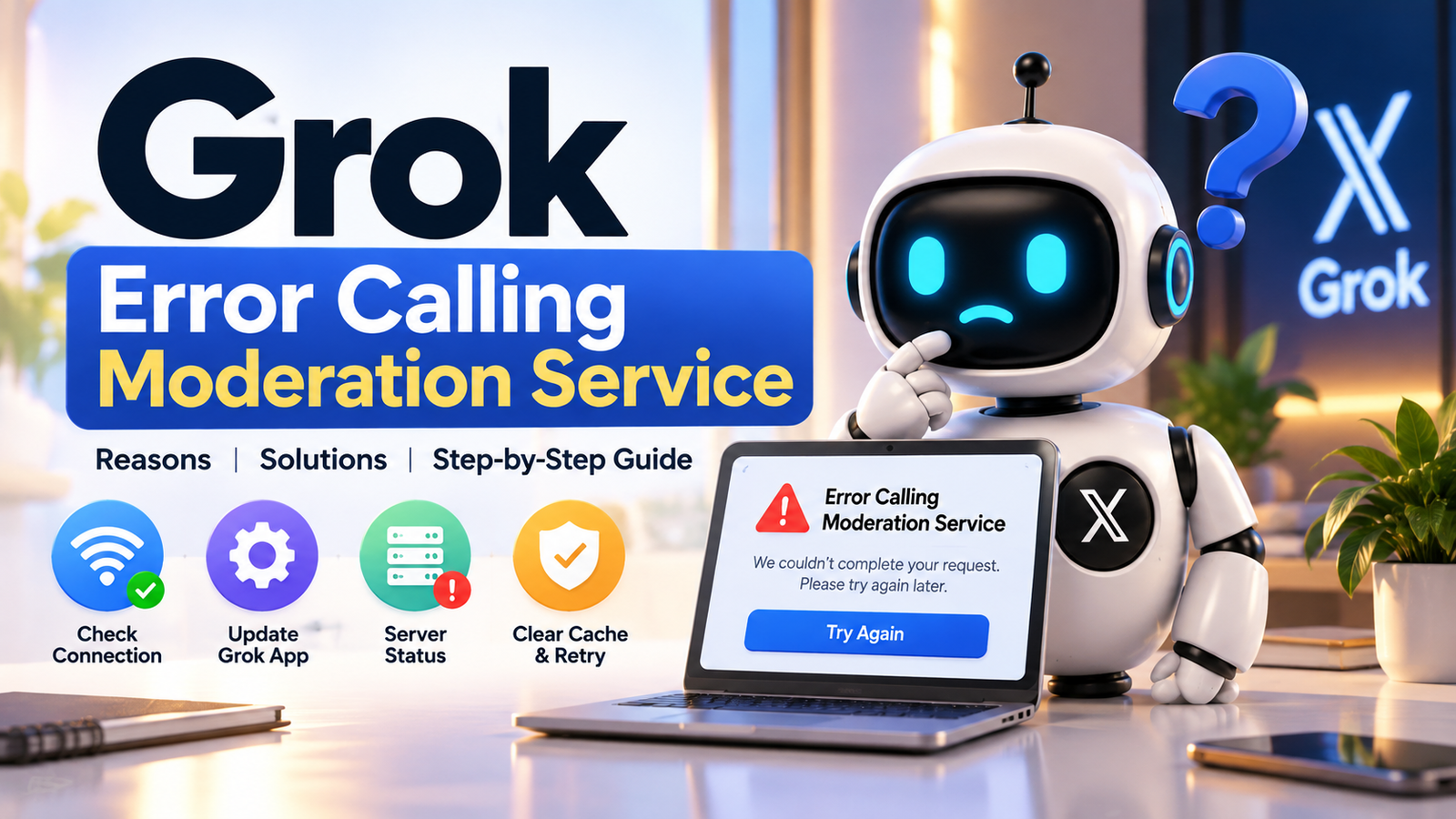
Error Calling Moderation Service Grok: Easy Fix Guide

If you see “error calling moderation service Grok”, you may wonder whether your prompt was blocked or your account has a problem. In many cases, this message points to a technical issue with the moderation check rather than a direct content rejection. Grok uses safety systems as part of its processing, and a request may fail when a service cannot complete its check properly. Users may encounter this message during image, video, or other generation attempts. This guide explains what the error means, common causes, practical fixes, and how to tell a technical failure from a genuine moderation decision. Understanding the difference can help you troubleshoot the problem without unnecessary changes.
What Does Error Calling Moderation Service Grok Mean?
The error calling moderation service Grok message generally means that Grok could not complete the moderation step needed for your request. A moderation service checks content before the platform continues with certain requests. If that service does not respond correctly, times out, or experiences a temporary problem, Grok may stop the request and display an error instead. This is different from a clear content rejection message. A moderation service can experience temporary technical problems, just like other online services. Therefore, seeing this message does not automatically mean that your particular prompt violated a rule or that your account has a restriction.
It is important not to assume that every moderation-related message means your account has been banned. Users can encounter moderation service errors while attempting ordinary requests, especially when a platform experiences temporary technical problems. If a harmless request works later without changing its wording, that can indicate a temporary issue. However, if Grok clearly states that specific content was rejected, the situation is different and may require changing the request. Looking at the exact error message is therefore the first useful step. It helps you decide whether you should troubleshoot the service, your connection, or the content of your prompt.
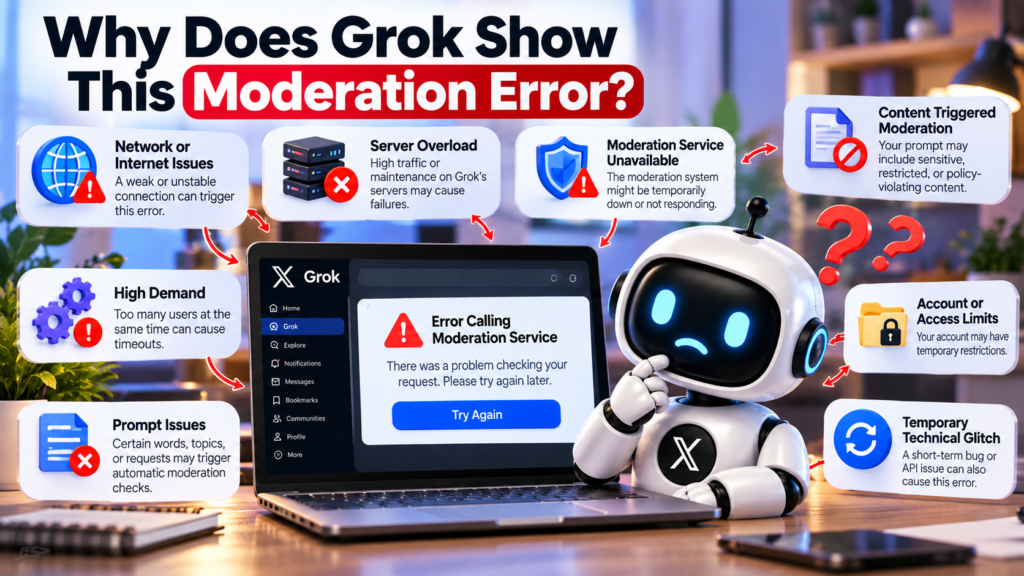
Why Does Grok Show This Moderation Error?
One common cause is a temporary problem on the server side. Grok requests can involve several systems, and a failure in one supporting component can interrupt the overall process. When a moderation service becomes unavailable or responds incorrectly, Grok may be unable to continue processing the request. This can happen without any change to your account or prompt. If several unrelated requests suddenly produce the same message, a wider service problem becomes more likely. In such cases, changing your prompt repeatedly may not help. Waiting for the service to recover can be more effective than making unnecessary changes.
Another possible cause is a problem between your device and Grok. A weak connection, VPN routing issue, browser session problem, outdated application, or temporary authentication issue can interfere with requests. Media generation can introduce additional processing steps, which may make failures more noticeable. You may also experience problems after leaving a browser tab open for a long time or switching between different networks. These possibilities do not necessarily mean anything is wrong with your account. Testing Grok from another browser, restarting the application, or checking your connection can help determine whether the problem is local or connected to the service itself.
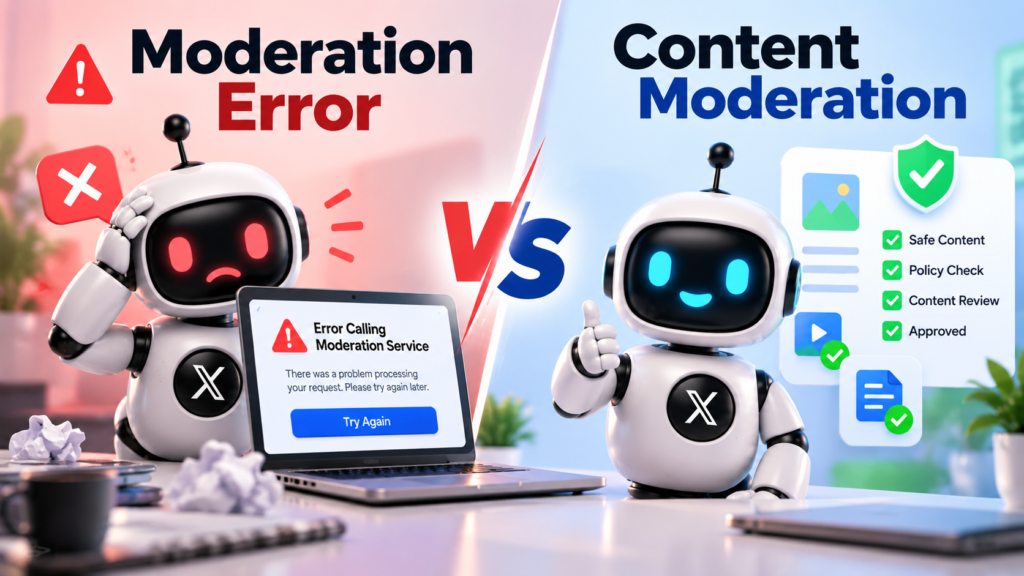
Moderation Error vs Content Moderation
Understanding the difference between a service error and a content moderation decision is essential. A service error means the moderation process did not successfully complete. A content moderation message means the system made a decision about the request. These situations can look similar to users, especially when an image or video fails to generate. However, they should not automatically be treated as the same problem. If Grok says it cannot call or access a moderation service, the issue may be technical. If it directly explains that the request cannot be completed because of content restrictions, you should review the request instead.
| Situation | What It Usually Means | First Action |
|---|---|---|
| Error calling moderation service | Moderation check failed | Check service status and retry |
| Content moderated | Request was blocked | Review and change the prompt |
| Service unavailable | Temporary service issue | Wait and retry |
| Internal error | Possible server-side failure | Retry later |
| Network error | Connection problem | Check internet or VPN |
This distinction helps you choose the right solution. If Grok explicitly reports that the content was moderated, repeatedly sending the same request is unlikely to solve the underlying policy issue. If it says error calling moderation service, a refresh or later retry may work. For ordinary users, the most practical approach is to identify the exact message first. This prevents confusion and saves time. It also helps you avoid unnecessarily rewriting a prompt when the actual problem may simply be a temporary service interruption.
How to Fix Error Calling Moderation Service Grok
Start with the simplest troubleshooting steps. First, check whether Grok is experiencing a wider service problem. If other users are reporting similar errors, the issue may not be related to your account. If no wider problem is visible, refresh Grok and submit the request again once. Avoid repeatedly clicking the generate button because repeated attempts do not repair a server-side moderation problem. If you are using the mobile application, completely closing and reopening it can refresh the current session. Similarly, refreshing the browser can remove a temporary page or connection problem that prevents the request from completing normally.
If the problem continues, try another supported platform. For example, move from the mobile application to the web version, or test the request from another browser. You can also temporarily disable a VPN and confirm that your internet connection is stable. Clearing browser cache or restarting the application may help when a local session becomes stuck. These steps are useful but cannot guarantee an immediate solution. If the service itself is having problems, local changes will not repair the backend. In that situation, waiting and trying again later may be the most practical option.
What to Do When Grok Image or Video Generation Fails
The error calling moderation service Grok message can be especially frustrating during image or video generation because media requests involve additional processing. A request may pass through several stages before the final result appears. If one stage becomes unavailable, the entire generation can fail. Therefore, identify the exact error before changing your entire prompt. If the message clearly indicates a service failure, retrying later may be appropriate. If the system identifies a content restriction, review the request instead. Keeping these two situations separate makes troubleshooting much easier.
For media generation, also check the uploaded file, prompt length, requested settings, and supported formats. An invalid input can create a different failure from a moderation service problem. Keeping your original prompt saved is useful because it lets you test the same request later. You can also create a simple test prompt to determine whether Grok is generally working or whether the problem appears only with one particular request. If a simple request works but your original request repeatedly fails, examine the original content and settings more closely.
A Simple Troubleshooting Chart for Grok Errors
The fastest way to troubleshoot Grok is to follow the error message rather than guessing. Start with the service status, then test your connection and session. If Grok works with a simple request but repeatedly fails with one specific request, inspect that request carefully. If many unrelated requests fail, a broader technical problem becomes more plausible. This approach also prevents users from making unnecessary changes to prompts that were never actually rejected. A simple troubleshooting routine can help you quickly narrow down the likely cause without wasting time.
Grok Troubleshooting Flow
“Error calling moderation service”
              │
              ▼
       Check Grok status
              │
       ┌──────┴──────┐
       ▼             ▼
   Service issue?   No issue
       │             │
       ▼             ▼
 Wait and retry   Refresh Grok
                     │
                     ▼
              Check connection
                     │
              ┌──────┴──────┐
              ▼             ▼
           Works          Fails
              │             │
              ▼             ▼
        Continue use    Try another
                       browser/platform
                              │
                              ▼
                       Contact support
This process keeps troubleshooting simple and practical. If the issue continues across platforms and remains reproducible, collect useful details before contacting support. Record the exact error, approximate time, device, operating system, browser or application version, and the type of request you were making. A screenshot can also be useful. These details help determine whether the problem is connected to your device, account, request, or a wider service issue. You can also keep a copy of the prompt so you can test it again after the service becomes stable.
When Should You Contact Grok Support?
You should consider contacting support when the error continues after basic troubleshooting and appears consistently across different attempts. Before contacting support, record the exact wording of the message, the approximate time it happened, the platform you used, and whether other prompts produced the same result. A screenshot can also be helpful. If possible, mention whether the issue happens only with images, videos, uploads, or ordinary text requests. Providing clear information makes it easier to understand what is happening. It also prevents unnecessary back-and-forth when support asks for additional details about your problem.
Use official support channels rather than random websites or downloads that claim they can “unlock” moderation. A genuine technical problem should be handled through normal troubleshooting and legitimate support. Avoid installing unknown software or browser extensions that promise to bypass Grok errors. Such tools can introduce additional security and privacy risks. If the problem is caused by a temporary service disruption, there may be nothing wrong with your account or device. Waiting for the service to recover can therefore be the most practical solution.
How to Prevent Future Grok Moderation Errors
You cannot completely prevent server-side errors because service availability is outside your control. However, you can reduce common local problems by keeping your Grok application and browser updated. Use a stable internet connection and avoid unnecessary VPN routing when troubleshooting. Save important prompts before starting long image or video generations. This prevents you from losing your work if the generation fails unexpectedly. It is also helpful to understand the difference between a technical error and a content decision, because each requires a different response. A simple troubleshooting habit can make future problems easier to identify.
For regular Grok users, a simple routine is usually enough. Check the service status, refresh the application, test the connection, and retry later if necessary. For more advanced users, keeping error messages and request details can make troubleshooting easier. You can also test a basic request before changing a complicated prompt. If the basic request fails too, the problem may be broader than your original content. If the basic request works normally, investigate the original request and its settings. This method gives you a clearer picture of what is actually causing the failure.
Frequently Asked Questions
Is “error calling moderation service” a Grok ban?
Not necessarily. The message indicates that Grok could not complete a moderation-related service request. It does not, by itself, prove that your account has been banned or that your prompt violated a policy. Technical problems, service interruptions, and connection issues can produce similar failures.
Why does Grok moderation error happen suddenly?
The problem can appear suddenly because online AI services depend on multiple backend systems. A temporary outage, overloaded service, network problem, or application issue can interrupt one processing stage. If everything was working previously, try refreshing Grok and testing the request again later.
How do I fix error calling moderation service Grok?
First, check whether Grok is experiencing a wider service problem. If not, refresh Grok, restart the application, check your internet connection, and try another browser or platform. Temporarily disabling a VPN can also help identify connection-related problems.
Does the error mean my prompt is unsafe?
No, not automatically. A moderation service error and a content moderation decision are different situations. A service error means the moderation check did not complete successfully. A clear content moderation message indicates that the system made a decision about your request.
Should I keep retrying the same Grok request?
Avoid repeatedly submitting the same request in rapid succession. If the moderation service is temporarily unavailable, repeated attempts are unlikely to repair the underlying problem. Check the service condition, wait for a reasonable period, and then try again. If the request remains blocked, review its content.
Conclusion
The error calling moderation service Grok message can be confusing, especially when a normal prompt suddenly fails. The key point is that a service error is not automatically the same as a content rejection. Start by checking whether Grok is experiencing a wider problem, then refresh the service, test your connection, and try another platform if necessary. For persistent problems, save screenshots and record useful technical details before contacting support. If the issue disappears later without changing your prompt, it may have been temporary. If only one request continues failing, review that request carefully. A simple troubleshooting process can help you identify the likely cause and get back to using Grok.
[…] ChatPPT: AI Presentation Maker for Fast PPTs Error Calling Moderation Service Grok: Easy Fix Guide Gening AI: Complete Guide to AI Character Chat in 2026 FaceCheckID: Complete Guide to Face […]