

Opus Clips: A Complete Guide to AI Video Clipping

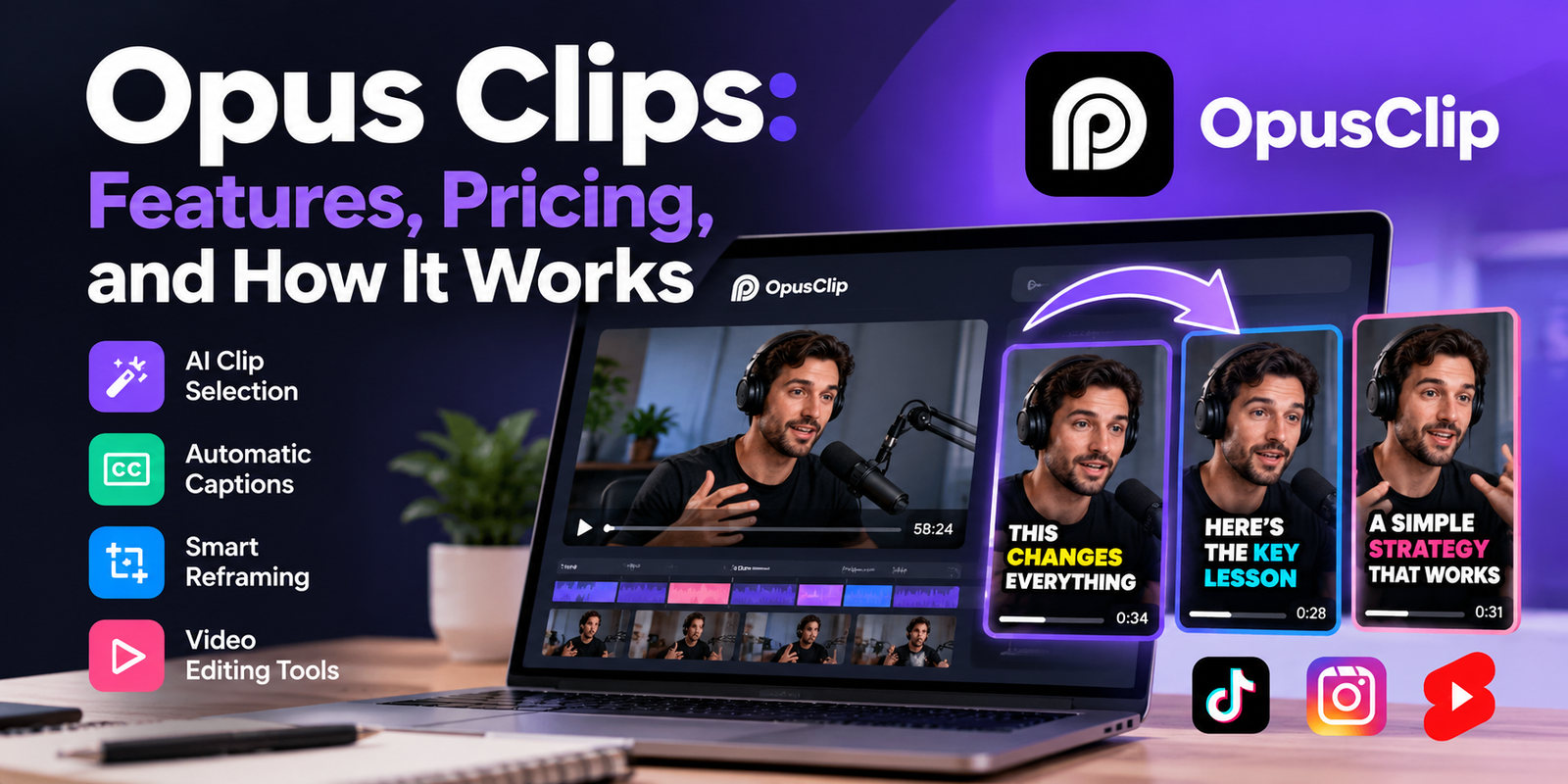
Creating short videos from podcasts, interviews, webinars, and YouTube videos can take hours when every clip must be selected, edited, captioned, and formatted separately. Opus Clips, commonly associated with the product name OpusClip, is an AI-powered video editing tool designed to make this process faster. It analyzes longer videos, identifies potentially useful moments, and helps turn them into short videos suitable for platforms such as TikTok, Instagram Reels, and YouTube Shorts.
The platform can also generate captions, adjust framing for vertical screens, and provide editing and publishing tools, depending on the selected plan. However, automated clipping is not the same as professional editorial judgment. A clip that looks promising to an algorithm may still lack context or fail to interest its intended audience. This guide explains how Opus Clips works, its main features, pricing, practical uses, limitations, and how to decide whether it fits your content strategy.
What Is Opus Clips?
OpusClip is a video editing platform that uses artificial intelligence to transform longer videos into shorter, social-media-ready clips. Its main purpose is to reduce the amount of manual work required to repurpose existing video content.
For example, imagine a creator has recorded a 60-minute podcast discussing business, productivity, and entrepreneurship. Instead of watching the entire recording and manually marking every interesting moment, the creator can use OpusClip to identify possible highlights and generate short video drafts.
The creator can then review the suggested clips, correct captions, adjust the framing, and export the best results.
The platform is particularly relevant to:
- YouTubers: Turn long videos into additional short-form content.
- Podcasters: Extract memorable comments, stories, and discussions.
- Digital marketers: Repurpose webinars, interviews, and product demonstrations.
- Educators: Create short lessons from longer teaching sessions.
- Businesses: Reuse presentations, training sessions, and recorded interviews.
- Agencies: Produce multiple social media assets from existing client footage.
OpusClip also offers broader AI editing capabilities beyond automatic clipping. These include tools for captions, reframing, B-roll, audio enhancement, and editing workflows. Available capabilities vary by feature and subscription.
How Does Opus Clips Work?
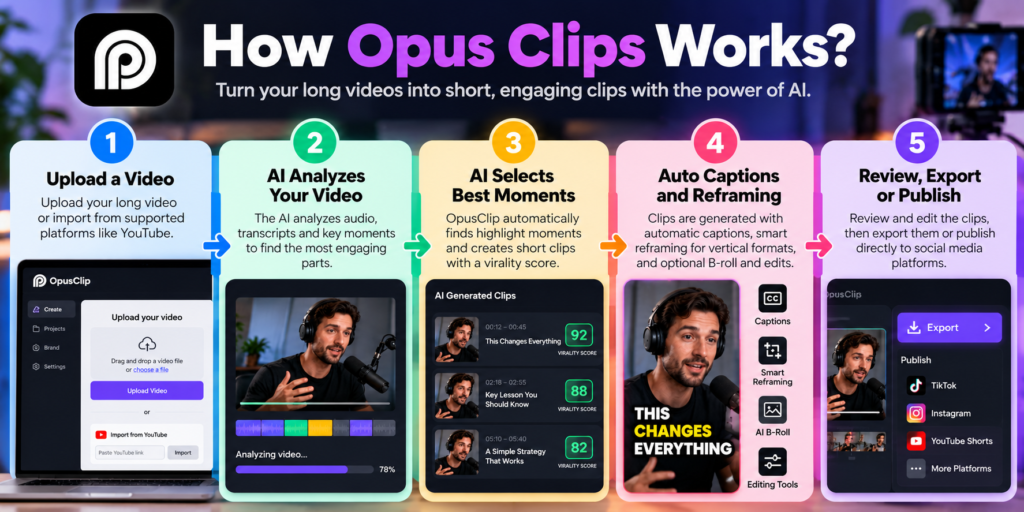
OpusClip combines video analysis, speech recognition, automated editing, and visual formatting. The exact processing methods are proprietary, so it is better to understand the practical workflow rather than assume that the software uses one specific AI model for every task.
1. Upload a Video or Import a Source
The process begins with an existing video. Depending on your subscription and the supported import options, you may be able to upload a local file or import footage from a supported platform.
The original recording might be a podcast, an interview, a tutorial, or a recorded livestream. Clear speech and a reasonably organized recording generally make the results easier to review.
2. AI Identifies Potential Highlights
The software analyzes the recording and selects sections that may work as individual clips. These moments might contain an explanation, a strong statement, an interesting question, or a useful piece of advice.
The goal is to find sections that can make sense without requiring viewers to watch the entire original video.
However, AI selection is a recommendation, not a guarantee of audience interest. A technically complete clip may still lack an effective opening or leave out information that changes the meaning.
3. Captions and Video Framing Are Added
The platform can generate captions from speech and adjust the video layout for the intended viewing format. This is useful when a horizontal podcast needs to become a vertical video.
Depending on the source footage and editing options, automatic framing can also help keep the relevant speaker or subject visible.
4. Review and Edit the Results
After processing, review each clip before publishing it. Check the transcript, remove unnecessary pauses, improve the opening, and make sure the clip begins and ends naturally.
For example, a podcast clip that starts with “That is why it matters” may be confusing to someone who has not heard the previous discussion. Replacing the opening with a short, accurate explanation can make the clip more understandable.
5. Export or Publish
Once the clips are ready, you can export them or use supported publishing integrations. OpusClip offers workflows for publishing to social platforms, with availability depending on the plan.
The important point is that automation handles much of the repetitive editing, while the creator remains responsible for accuracy, context, and the final publishing decision.
Key Features of Opus Clips
OpusClip offers several tools that make short-form video production easier. The most useful features depend on your source material and how much control you want over the final edit.
AI-Powered Clip Selection
The automatic clipping feature identifies sections of longer recordings that may work as individual videos. Some plans also include a Virality Score, which is intended to help users assess a clip’s potential.
Treat this score as a prioritization aid rather than a reliable prediction of views. Social media performance depends on factors such as audience interest, timing, competition, presentation, and the quality of the opening.
Automatic Captions and Subtitles
OpusClip can transcribe spoken words and display them as captions. Animated caption styles and keyword highlighting can make important phrases easier to notice.
Captions are particularly useful for mobile viewers who watch without sound. They can also improve accessibility for people who have difficulty hearing the audio.
Always proofread the transcript, especially when a video contains:
- Names of people and organizations
- Technical or medical terminology
- Accents or overlapping speech
- Numbers, dates, and financial figures
- Words that sound similar but have different meanings
AI Reframing for Vertical Videos
A horizontal video often needs a different composition for vertical platforms. OpusClip’s reframing tools help adapt footage to formats such as 9:16, while higher-tier plans offer additional aspect ratios and more advanced framing controls.
This can save considerable time when a speaker moves around the frame or when the original video contains multiple participants.
However, automatic cropping is not always perfect. A wide shot may contain several people, presentation slides, or important visual details. Review the output to ensure the crop does not cut off a speaker or remove essential information.
AI B-Roll and Visual Enhancements
B-roll refers to supplementary footage inserted over the main video. For instance, a presenter discussing online shopping might be shown alongside relevant footage of a person browsing a store.
OpusClip offers AI-assisted B-roll features, with availability depending on the subscription. These tools can add visual variety to suitable videos.
Still, extra footage should support the spoken message. An unrelated stock clip may distract viewers or make a factual explanation less clear. For news, tutorials, and educational videos, check that supplementary visuals do not imply something that never happened.
Editing, Audio Cleanup, and Branding
The platform also offers editing capabilities that may include text-based editing, timeline controls, filler-word removal, silence removal, audio enhancement, and reusable brand templates.
These features are useful when creators want consistent captions, fonts, colors, and logos across a series of videos.
The available tools differ by plan, so verify the current subscription details before choosing a package.
How to Use Opus Clips Step by Step
You do not need advanced video-editing experience to begin. However, a simple review process will help you get better results than publishing every automatically generated clip.
Step 1: Choose a Suitable Recording
Start with a podcast, interview, tutorial, webinar, or another recording that contains useful moments. Clear audio and a focused topic make editing easier.
Step 2: Import Your Video
Sign in to OpusClip and upload your file or use a supported import method. Review the available options for your account before processing a large recording.
Step 3: Generate and Evaluate Clips
Let the software analyze the recording. Review the proposed highlights and choose moments that communicate a useful idea without requiring too much missing context.
Step 4: Refine the Best Candidates
Correct subtitles, adjust framing, trim awkward pauses, and improve the opening. Make sure the final sentence does not end abruptly or misrepresent the original speaker.
Step 5: Export and Publish
Export the finished clips or use an available publishing integration. Write an accurate title and description, then monitor audience retention and engagement to guide future edits.
A Practical Example
Suppose you publish a weekly 45-minute podcast about small-business marketing. One episode explains why a company’s website receives visitors but generates few sales.
You could use OpusClip to identify sections discussing landing pages, confusing checkout processes, and weak calls to action. After reviewing the results, you might select three clips, each focused on one problem.
Rather than publishing all the drafts immediately, check whether each clip explains the problem clearly and offers a useful takeaway. This approach turns one recording into several focused pieces of content without treating the AI’s first suggestions as finished editorial work.
Opus Clips Pricing: Free and Paid Plans
OpusClip offers a free plan and paid subscriptions. The following prices are listed in US dollars and should be verified before subscribing because plans and features can change.
| Plan | Listed price | Main benefits |
|---|---|---|
| Free | $0 | 60 monthly credits, captions, automatic reframing, clips up to 1080p, watermark |
| Starter | $15/month | 150 monthly credits, editing tools, Virality Score, animated captions, watermark-free exports |
| Pro | $29/month, or $14.50/month billed annually | 300 monthly credits, additional import sources, AI B-roll, scheduler, team features, and more aspect ratios |
| Business | Custom pricing | Tailored credits, team access, integrations, storage, and support |
Pricing information checked on October 20, 2026. Taxes, regional availability, and subscription terms may vary.
Is the Free Plan Enough?
The free plan is a reasonable way to test whether automatic clipping works for your content. It includes basic clipping-related output, captions, and reframing, but it has important restrictions.
Free clips include a watermark, editing is unavailable on this tier, and clips become unexportable after three days.
Before processing a full content library, test a short recording and assess the quality of the selected moments, transcription, and framing.
Which Paid Plan Should You Choose?
- Choose Free if you want to experiment before spending money.
- Consider Starter if you publish regularly and need editing controls and watermark-free exports.
- Consider Pro if you process videos from multiple sources, need more formats, want a scheduler, or work with collaborators.
- Consider Business if you need a customized workflow, API access, or organization-level features.
The most important pricing consideration is not simply how many clips you can create. It is how much original footage you process, how many drafts you actually publish, and whether the time saved justifies the subscription.
Benefits of Using Opus Clips
The main advantage of OpusClip is that it reduces repetitive editing work. Its value becomes clearer when you regularly publish long-form content and need several short videos from each recording.
Saves Time on Repetitive Tasks
Finding highlights, creating subtitles, and resizing footage manually can take considerable effort. Automated tools help shorten this process, leaving more time for reviewing content and planning distribution.
The time saved depends on the recording. A clear interview may produce several useful clips quickly, while a discussion with overlapping speakers or complicated visuals may need extensive corrections.
Makes Content Repurposing Easier
One recording can support several content formats. A business webinar, for example, could provide short educational videos, promotional snippets, and answers to common customer questions.
This makes it easier to reuse content that has already been produced instead of arranging a new recording for every social media post.
Helps Maintain a Consistent Publishing Schedule
Creators who struggle to publish regularly may benefit from building a collection of reviewed clips in advance. Branding tools and supported scheduling features can help organize that workflow.
Consistency alone does not guarantee growth, but a repeatable process makes it easier to test topics and learn which formats work best for a particular audience.
Limitations and Risks to Consider
Despite its advantages, OpusClip cannot replace every part of a thoughtful editing process.
AI May Select the Wrong Moments
A compelling sentence is not always a good standalone clip. The algorithm might select a statement that sounds surprising but depends on an explanation several minutes earlier.
How to avoid this: Watch every clip from beginning to end, including the seconds immediately before and after the selected section. Check whether the message remains accurate without the surrounding discussion.
Captions and Cropping Can Contain Errors
Speech recognition may misinterpret names, specialist vocabulary, or unclear audio. Automatic reframing can also place the wrong person in focus or crop important material.
These are editing problems, not minor cosmetic issues, when the video communicates news, financial information, or educational advice.
A Virality Score Cannot Predict Success
OpusClip’s Virality Score is a product feature, not proof that a clip will achieve a particular number of views. A high score does not guarantee audience retention, shares, followers, or revenue.
Use actual platform analytics to evaluate results. Watch time, audience retention, completion rates, and meaningful engagement are more useful than relying on an automated score alone.
Privacy and Copyright Require Attention
Before uploading footage, check whether you have permission to process it through a third-party service. Private meetings, customer interviews, internal training sessions, and unreleased material may contain confidential information.
Review the service’s current privacy policy, retention terms, and organizational requirements before uploading sensitive recordings.
Copyright is another consideration. Having access to a video does not automatically give you permission to republish its clips. Check the rights to the original footage, music, images, and other material, as well as the rules of the platform where you intend to publish.
Opus Clips Alternatives: Which Tools Are Worth Considering?
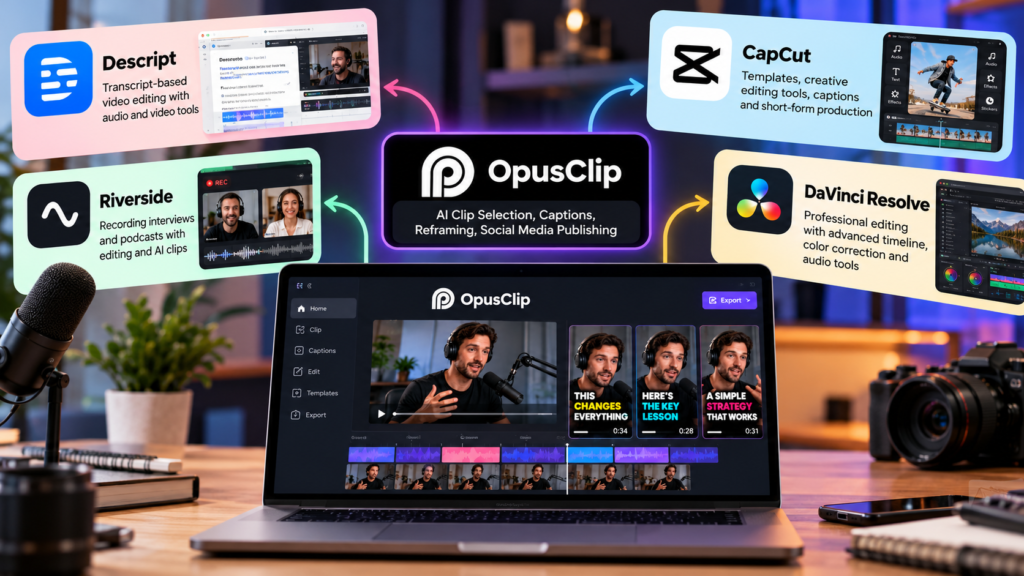
OpusClip is not the only option for AI-assisted video editing. The right alternative depends on whether you want automatic highlight selection, detailed editing controls, podcast recording, or a broader social media editor.
| Tool | Best suited for | Main distinction |
|---|---|---|
| OpusClip | Repurposing long videos into shorts | Automated clip selection, reframing, captions, and publishing workflows |
| Descript | Podcast and spoken-video editing | Transcript-based editing with broader audio and video controls |
| CapCut | Social media editing | Templates, manual creative editing, captions, and short-form production |
| Riverside | Recording interviews and podcasts | Combines recording workflows with editing and AI-assisted clips |
| DaVinci Resolve | Detailed professional editing | Extensive timeline, color correction, audio, and post-production controls |
These tools have different strengths, and the best choice depends on the workflow you need.
For a closer comparison, consider related topics such as AI video editing tools, AI caption generators, and video editing software for beginners. These are also useful subjects for internal links on a website covering AI and content creation.
Tips for Getting Better Results With Opus Clips
The quality of the original recording and your editorial decisions often matter more than the number of clips an AI generates.
- Start with a clear topic. Recordings with useful explanations, strong examples, or focused discussions usually offer better opportunities for short clips.
- Give each clip one main idea. A short video that tries to explain five different concepts can be difficult to follow.
- Check the opening. Make sure viewers quickly understand what the clip is about without relying on a misleading headline.
- Preserve context. Never remove a qualification or supporting sentence that changes the speaker’s meaning.
- Keep captions readable. Avoid covering faces, important objects, or other on-screen information with oversized text.
- Adapt to the platform. A clip for YouTube Shorts may need a different title, caption style, or call to action than a professional video shared on LinkedIn.
- Measure the results. Compare retention and engagement across clips to identify the topics and editing choices your audience responds to.
A useful workflow is to generate several candidates, shortlist the strongest ones, edit them carefully, and publish only the clips that provide clear value. More output is helpful only when the quality remains consistent.
Frequently Asked Questions About Opus Clips
1. What are Opus Clips used for?
Opus Clips generally refers to short videos created with OpusClip, an AI tool that turns longer recordings into short, captioned videos for social media.
2. Is OpusClip free to use?
Yes. Its free plan includes 60 monthly credits, watermarked clips, and limited editing and export options. Plan details can change.
3. Can OpusClip turn YouTube videos into Shorts?
It supports YouTube as an input source under eligible plans. You should have the necessary rights to process and republish the source material.
4. Does OpusClip automatically add captions?
Yes. It can generate captions and offer animated styles. Review the transcript before publishing because speech recognition can make mistakes.
5. Does OpusClip guarantee viral videos?
No. Its Virality Score estimates potential, but actual performance depends on the content, audience, platform, and other factors.
6. Is OpusClip suitable for beginners?
Yes. Its automated workflow reduces the need for manual editing skills, although users still need to review clips, correct errors, and choose suitable moments.
7. Is OpusClip better than CapCut?
Neither is best for every task. OpusClip focuses on automatically finding highlights in long recordings, while CapCut offers a broader editing workflow for creating and refining social media videos.
Conclusion
Opus Clips can be a useful solution for creators and businesses that want to turn existing videos into short-form content without editing every segment from scratch. Its combination of AI clip selection, captions, reframing, and publishing tools can simplify the process of repurposing podcasts, interviews, webinars, and tutorials.
However, the best results still depend on human review. Automated tools can select an incomplete statement, misinterpret speech, or create a crop that hides important information. A Virality Score should guide your decisions, not determine them.
If you are considering OpusClip, begin with the free plan and test it on a recording you already know well. Evaluate the quality of its suggestions, the time required to correct them, and the usefulness of the final clips. If it consistently saves time while preserving your content’s meaning, upgrading may make sense. The goal is not to publish more videos at any cost, but to create useful content more efficiently.
[…] What Is Google’s AI Called? Meet Google Gemini Opus Clips: A Complete Guide to AI Video Clipping Poe AI: Features, Models, Pricing, and How to Use It Dzine AI: Features, Pricing, Uses, […]